DVC GATE Remote Service – Quick Start

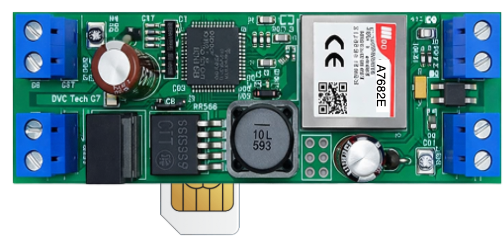
DVC GATE Module LTE  
/Functions/
DVC GATE Module Wi-Fi /Functions/

( Full version manual:  https://division.business/dvc-gate-module  )

For equipment selection and technical support, contact us. We’ll help you figure things out and choose the right solution.

To control gates and barriers, the DVC GATE app is used with the cloud service: https://gate.dvc-cloud.com

Setup steps (owner / installer):

  1. Buy the DVC GATE module (GSM or Wi-Fi) at http://division.business and connect it to your standard gate controller ( below in this instruction):

  2. Register the module at https://gate.dvc-cloud.com

    • Enter your phone number and email

    • Enter the Device ID (it is on the module case)

    • Add the name and address of the location where the module is installed

    • Click “Send Code”


  3.  Go to the “Service Users” page

    • Create a list of users who are allowed access

    • Enter their phone numbers and emails

User steps:

  1. Install the DVC GATE app from Play Market / App Store

    • Open the app, enter your email and phone number, and get a confirmation code by email (done once)

    • The control interface for all your objects registered in the cloud  https://gate.dvc-cloud.com  will activate automatically.

That’s it — choose a theme you like and start using the app!

  1. DVC GATE Installation  (4 steps)
Step 1. Connection
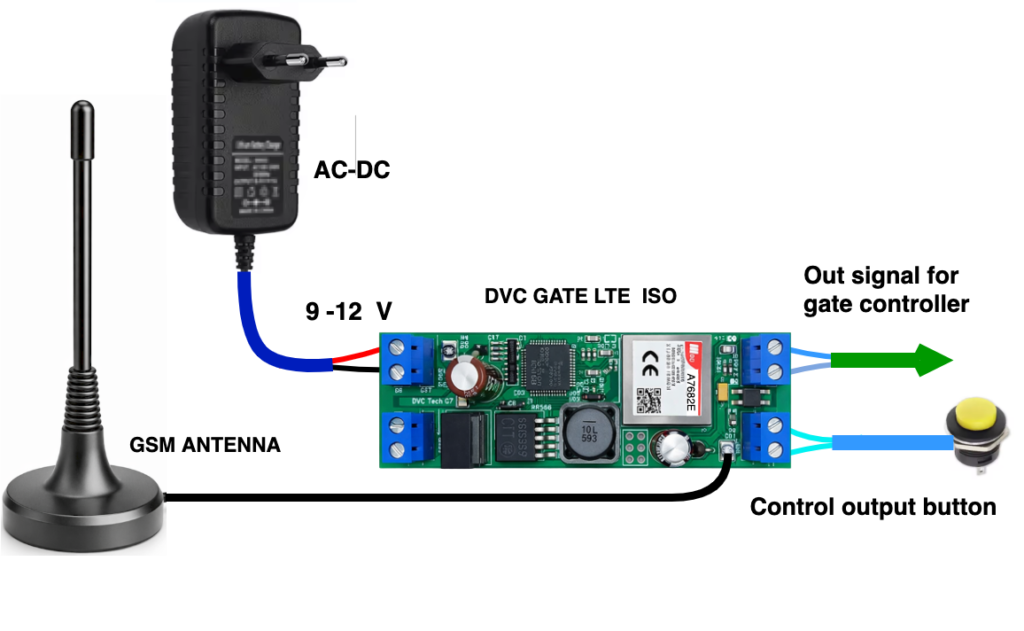
Connect the module to the gate controller:
module output → “button” / “dry contact” input
Power supply:
9–12V (LTE / 2G)
⚠️ Wi-Fi: 6–9V

Step 2. Communication
GSM (2G / LTE):
insert SIM card with internet
Wi-Fi:
prepare SSID and password

Step 3. Setup via RS-485 (only for Wi-Fi version) (Fig. 1)
Connect USB–RS485 adapter to PC.
Open terminal (DVC Configurator  / Hercules).
Parameters:
9600 baud
8N1
Send command  for Wi-Fi configuration:
:CMD{SSID_PASSWORD:"NETWORK_NAME","PASSWORD";}CRC:1234

Step 4. Start
apply power
wait ~30 sec

➡️ device will automatically connect to cloud


      2. Operation check
Go to:
https://gate.dvc-cloud.com

Press Test
→ gate should activate


     3. Status check (LED blinking)

1 time / 2 sec – normal operation
1 time / 0.5 sec – ❌ no network
1 time / 0.2 sec – ❌ no server connection
fast (0.2 sec) – reconnecting


      4. Minimal connection

Power → +V / GND
Output → controller “button” input
SIM or Wi-Fi


      5. Important (for startup)

device works only through DVC GATE cloud
registration is required (Device ID from label)
users are added in web interface


      6. Typical problems

No network:
SIM has no internet
weak signal
wrong Wi-Fi

No control:
device not registered
user not added

No gate response:
wrong “dry contact” wiring
controller input type not compatible


      7. Working principle

The module controls the standard gate controller via Internet or via phone call:
connects to cloud
receives commands
closes output (relay / opto-relay) 

Wiring diagrams for connecting the DVC GATE COMPACT /2G / LTE / LTE ISO module to the gate controller — Fig. 1, 4.*

For equipment selection and technical support, contact us. We’ll help you figure things out and choose the right solution.