TABLE OF CONTENTS
1 . Purpose and scope of application
2. Functional capabilities
3. Connection diagrams
4. Technical specifications
5. Setup and registration
6. Connection
7. Package contents
8. Storage and transportation conditions
9. Warranty obligations
10. SETTING UP THE CONNECTION OF THE DVC GATE WIFI ISO MODULE TO THE WIFI NETWORK
1. PURPOSE AND SCOPE OF APPLICATION
For equipment selection and technical support, contact us. We’ll help you figure things out and choose the right solution.
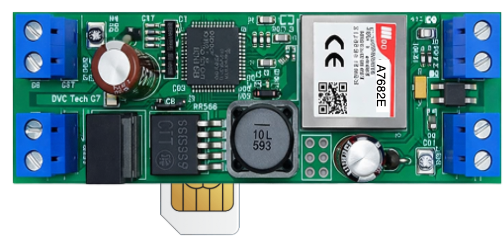
Modules of the DVC-GATE series (2G, 2G-GPS, LTE, LTE ISO, WiFi ISO) are specialized gate opening modules and are fully ready for operation as part of the cloud service:
* For the DVC GATE WiFi ISO model, configuration of connection to the WiFi network is required. The configuration method is given at the end of the instruction.
* If necessary, controllers can be supplied with pre-configured WiFi network settings.
2. FUNCTIONAL CAPABILITIES
Universal Control Module for Gates and Barriers (WiFi / LTE / 2G)
2.1 Purpose
Automatic connection to the DVC GATE cloud service
Android / iOS control for multiple users
User list management via web interface
Manual override via button (discrete input)
Service notifications on module status and operation
2.2 Interfaces & Specifications (common)
1 × manual button input
2 × control outputs — opto-relays, 400 V / 150 mA
3 × control relay outputs, 250 V / 1 A (optional)
Adjustable pulse width (default: 2 seconds)
Multifunction LED indicator
Expandable with additional sensors and I/O modules
2.3 Communication Interfaces (by version)
1 × RS-485 interface (configuration)
- For WiFi version: RS-485 used for SSID/password setup
- For LTE version: RS-485 optional / service use
Network connection:
- LTE / 2G models — GSM (TCP/IP)
- WiFi ISO models — Wi-Fi (TCP/IP, client mode)
2.4 Power Supply (by version)
LTE / 2G: 9–12 V, ~0.4 W
WiFi ISO: 6–9 V, ~0.4 W
2.5 Enclosure Options
DIN rail mount: 90 × 35 × 60 mm
- LTE / 2G: internal GSM antenna
- WiFi ISO: internal Wi-Fi antenna
Outdoor compact enclosure: 112 × 75 × 30 mm
- LTE / 2G: external GSM antenna
- WiFi ISO: external Wi-Fi antenna
2.6 Environmental Conditions
Operating temperature: -20°C to +50°C
Humidity: 30–80%
3. CONNECTION DIAGRAMS FOR GATE CONTROL
Connection diagram of the DVC GATE COMPACT, DVC GATE LTE ISO module to the gate controller, as well as DVC GATE 2G/LTE and DVC GATE WiFi ISO models.
4. TECHNICAL SPECIFICATIONS
Parameter |
Unit |
Value |
|---|---|---|
Supply voltage (2G/LTE) |
V |
7 – 12 |
Supply voltage WiFi ISO |
V |
6 – 9 |
Power consumption |
W |
0.4 |
Communication protocol via GSM |
— |
TCP/IP |
Communication protocol via WiFi |
— |
TCP/IP |
Number of RS-485 ports |
— |
1 |
Maximum RS-485 line length |
m |
1000 |
Enclosure material |
— |
plastic |
Protection rating |
— |
IP20 |
Enclosure dimensions |
mm |
90×36×65 |
Size |
— |
2 DIN |
Ambient temperature range |
°C |
-20 … +50 |
Relative humidity |
% |
30 … 80 |
Device weight |
g |
90 |
Network connection type |
— |
client |
Network connection type WiFi ISO |
— |
Wi-Fi client |
General characteristics (all models)
- 1 × RS-485 port (optional)
- 1 × discrete input for manual gate control button
- 1 × switched output
Model differences
DVC-GATE 2G / 2G-GPS / LTE:
Outputs of the “open collector” type (an external relay can be used if required).
DVC-GATE LTE ISO / WiFi ISO:
Equipped with an optorelay output (load up to 400 V / 150 mA).
5. SETUP AND REGISTRATION
Registration is carried out on the page:
5.1. Device registration
- Go to the page
https://gate.dvc-cloud.com/,
enter your phone number and the Device ID (indicated in the package), and create a name for the object you will control. - Add a list of users who have the right to open the gate. Enter their phone numbers and email addresses.
- Optionally, create a list of phone numbers that trigger closing of the output contacts and upload it to the module.
6. CONNECTION
- Connect the DVC-GATE LTE or WiFi module according to the connection diagram in this manual.
- Connect the output contacts of the module to the control input of the gate or barrier controller
(“button” / “dry contact”).
For DVC GATE 2G/LTE models, the open collector can be connected directly or via an intermediate relay. - Insert the SIM card into the SIM holder (for GSM models).
- Apply power:
- 9–12 V for DVC-GATE LTE / 2G / 2G-GPS
- 6–9 V for DVC-GATE WiFi ISO
- After ~30 seconds the module connects to the service and is ready for operation.
- In your account, press “Test” to verify operation:
7. PACKAGE CONTENTS
- DVC-GATE module (+ sticker with Device ID) — 1 pc.
- Technical passport (this document) — 1 pc.
- Individual packaging — 1 pc.
8. STORAGE AND TRANSPORTATION CONDITIONS
Storage: in the manufacturer’s packaging at temperatures from -20°C to +40°C, humidity up to 80%.
Transportation: by any type of covered transport.
9. WARRANTY OBLIGATIONS
Warranty period: 12 months from the date of purchase.
The warranty applies only to defects caused by the manufacturer.
Note: The manufacturer
http://www.division.business
reserves the right to make design changes that improve performance without affecting the main parameters.
10. SETTING UP THE CONNECTION OF THE DVC GATE WIFI ISO MODULE TO THE WIFI NETWORK
- Download and run the terminal program DVC Configurator
Connection diagram of DVC GATE WIFI ISO for WiFi configuration (Fig. 4).
WiFi Configuration (DVC GATE WIFI ISO)
- Connect contacts A and B of the USB–RS485 converter to terminals A and B of the DVC GATE WIFI ISO module.
Connect the USB interface to your computer (see Fig. 4).
Apply power 6–9 V to the module. - Open the
DVC Configurator
and select the Serial tab. - Configure the COM port settings:
- Speed: 9600
- Data bits: 8
- Parity: None
- Stop bits: 1
Then click Open to start communication.
- Refer to Fig. 4 for the visual connection diagram of the module.
- Make sure the WiFi router is turned on. Prepare the SSID (network name) and password.
- Send the command to configure WiFi parameters:
:CMD{SSID_PASSWORD:"NETWORK_NAME","PASSWORD";}CRC:1234 - After sending the command, the module will connect to the WiFi network and then to the server:
If needed, you can send your WiFi network name and password, and a pre-configured module will be prepared for you.
For equipment selection and technical support, contact us. We’ll help you figure things out and choose the right solution.